|
Buyer and Seller Beware – Tips to Avoid Scams on Craigslist
Craigslist, an online collection of location-based classified ads, can be great for finding sofas, apartments, and even jobs. But as with all online activities, there is the potential for misuse. Scammers can be found virtually everywhere, including Craigslist, and they're out to get your money in any way they can.
Some popular tactics include listing items that don't actually exist and getting you to pay for them; getting you to pay for your purchase through a phony escrow account; getting you to pay for items through Western Union or another service that doesn't trace the receiver; getting you to reveal bank account or other financial information; and offering to pay more for an item that you've listed, then getting you to send a refund that reveals your banking information.
Craigslist offers several tips for avoiding these scams, but the #1 piece of advice that will prevent 99 percent of all scams is to deal only with local folks, and meet them in person. Here are a few more rules:
- Never send funds via a wire service such as Western Union or Moneygram.
- Beware of fake cashier's checks and money orders.
- Don't believe any guarantees "from Craigslist," since Craigslist is not actually involved in any transaction.
- Never purchase an item or rent a living space you haven't seen.
- Refuse to submit to credit or background checks until you know the potential employer or landlord is legitimate.
Source: http://www.craigslist.org/about/scams
For added protection, trust your instincts. Be wary of ads that look as though they were written by someone who does not use English as their primary language (check for spelling errors and awkward usage). Also make sure you are really on Craigslist; it's easy to make a typo and end up on a site that looks like Craigslist but is really a scammer site.
This Month's FAQ – What's the Best Way to Transfer Files to My New PC?
Question: I'm planning to get a new computer with Windows 7 and will need to transfer my files over from my old PC. What's the best way to do this?
Answer: The best way to transfer your files is to use the Microsoft tool designed specifically for this task, Windows Easy Transfer. With this tool, you can easily transfer user accounts, files and folders (including documents, photos, and music), and other information (such as Internet favorites, email messages, and program settings).
With Easy Transfer, you can decide how you want to pull the data from your old computer over to your new computer.
Your options are:
- Through a network connection
- Using a CD or other removable media
- With a special cable (called the Easy Transfer cable) that you can order online or pick up at an electronics store
You'll need to start Easy Transfer on both computers, choose what information you want to transfer, and follow the instructions to complete the task.
Keep in mind you will still need to install applications on your new computer, such as the Microsoft Office suite, financial software, and any other programs you may have on your old system. Also note that transferring data can be a lengthy process; the actual time will vary depending on the method you choose (network, media, or cable) and the amount of data you have. For more information, visit the Microsoft Windows Easy Transfer page.
Short Tutorial – Manually Clearing Your Browser History
Your browser history is a handy tool when you want to quickly return to a recently visited webpage. But it can also become a privacy issue, which is why browsers provide the option of clearing your history. It's also a good thing to do regularly to help prevent the slowdown of your Internet and computer speeds due to the accumulation of cookies and offline webpages. To clear your browser history, simply follow the steps below for your browser and operating system.
Manually Clearing Your Browser History Using ...
Internet Browser: Internet Explorer 8
Computer Operating System: Windows XP
1. With Internet Explorer open, click your cursor arrow on the "Tools" menu and select "Internet Options" from the resulting drop-down menu.
2. The Internet Options window will open and the "General" tab should be selected. In the "Browsing history" section, click on the "Delete..." button.
3. The Delete Browsing History window will open. By default, some of the selections will be checked. Once you are satisfied that the appropriate selections have been made, click on the "Delete" button.
4. The "Delete Browsing History" progress box will appear to show you the deletion status.
5. Click the red X in the upper right corner to close the Internet Options window.
Internet Explorer 8 also gives you the option of automatically deleting your browsing history upon exiting from the program. To do this, simply follow these steps:
1. With Internet Explorer open, click your cursor arrow on the "Tools" menu and select "Internet Options" from the resulting drop-down menu.
2. The Internet Options window will open. While on the "General" tab and in the "Browsing history" section, check the box next to "Delete browsing history on exit."
3. Next, click on the "Apply" button to save your changes and then click on the "OK" button to close the Internet Options window.
Manually Clearing Your Browser History Using ...
Internet Browser: Internet Explorer 9
Computer Operating System: Windows Vista and Windows 7
1. With Internet Explorer open, click your cursor arrow on the button resembling a gear or cog on the right side of the tool bar, drop down to the "Safety" menu, and select "Delete Browsing History..." from the resulting drop-down menu.
2. The Delete Browsing History window will open. The box next to "History" should be checked. Uncheck any other items you do not want to delete, like Cookies.
3. Click on the "Delete" button. The "Delete Browsing History" pop-up box will appear showing you the progress of deleting your history and will close automatically when the process is complete.
Internet Explorer 9 also gives you the option of automatically deleting your browsing history upon exiting from the program. To do this, simply follow these steps:
1. With Internet Explorer open, click your cursor arrow on the button resembling a gear or cog on the right side of the tool bar and select "Internet Options" from the resulting drop-down menu.
2. The Internet Options window will open. While on the "General" tab and in the "Browsing history" section, check the box next to "Delete browsing history on exit."
3. Next, click on the "Apply" button to save your changes and then click on the "OK" button to close the Internet Options window.
Manually Clearing Your Browser History Using ...
Internet Browser: Mozilla Firefox 8.0.1
Computer Operating System: Windows XP, Windows Vista, Windows 7, and Mac
OS X
1. With Firefox open, click your cursor arrow on the "Tools" menu and select "Clear Recent History..." from the resulting drop-down menu.
2. The Clear Recent History window will open. Click the down arrow next to "Details" and verify that the box next to "Browsing & Download History" is checked.
3. From the drop-down menu next to the "Time range to clear:" field, choose from the five items listed: "Last Hour," "Last Two Hours," "Last Four Hours," "Today," or "Everything."
4. Click on the "Clear Now" button.
Manually Clearing Your Browser History Using ...
Internet Browser: Safari 5.0.5
Computer Operating System: Windows XP, Windows Vista, Windows 7, and Mac
OS X
1. With Safari open, click your cursor arrow on the "History" menu and select "Clear History" from the resulting drop-down menu.
2. A pop-up box will appear asking, "Are you sure you want to clear history? You can't undo this action." There is also an empty check box next to "Also reset Top Sites." Check the check box and then click on the "Clear" button.
Manually Clearing Your Browser History Using ...
Internet Browser: Google Chrome 16
Computer Operating System: Mac OS X 10.6
1. With Chrome open, click your cursor arrow on the "History" menu and select "Show Full History" from the resulting drop-down menu.
2. When the "History" window opens, click on the "Edit items..." link to the upper right.
3. Click the "Clear all browsing data..." button at the top of the list of links in Chrome's history.
4. Close the window when you're finished.
Manually Clearing Your Browser History Using ...
Internet Browser: Google Chrome 16
Computer Operating System: Windows XP, Windows Vista, or Windows 7
1. With Chrome open, click your cursor arrow on the "Tools" icon that is shaped like a wrench on the right of the menu bar and select "History" from the resulting drop-down menu.
2. When the "History" tab opens, click on the "Edit items..." link to the upper right.
3. Click the "Clear all browsing data..." button at the top of the list of links in Chrome's history.
4. Close the tab when you're finished. |


















 Better Travel is a local, full service travel agency owned and operated by Tom and Susanne Byrne. Tom and Susanne are experienced professionals both having extensive careers in the travel industry. Their agency is one of only a few independent owned agencies and serves clients throughout the United States. Have you ever been stuck at an airport because your flight was delayed or cancelled, or book a vacation that turned out not to be what you expected? Consider calling the experts at Better Travel where they say
“Please Go Away…Often!” Better Travel is located in the Mad River Green Shopping
Center in Waitsfield. They are open Monday – Friday, 9:30 a.m. – 5:00 p.m. Call and book your vacation today at 496-9900.
Better Travel is a local, full service travel agency owned and operated by Tom and Susanne Byrne. Tom and Susanne are experienced professionals both having extensive careers in the travel industry. Their agency is one of only a few independent owned agencies and serves clients throughout the United States. Have you ever been stuck at an airport because your flight was delayed or cancelled, or book a vacation that turned out not to be what you expected? Consider calling the experts at Better Travel where they say
“Please Go Away…Often!” Better Travel is located in the Mad River Green Shopping
Center in Waitsfield. They are open Monday – Friday, 9:30 a.m. – 5:00 p.m. Call and book your vacation today at 496-9900.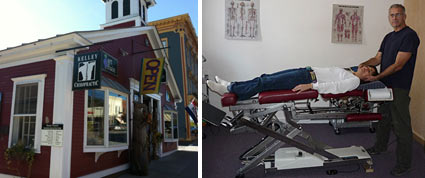 Kelley Chiropractic provides general chiropractic treatment services to people of all ages. Owner Winfield Kelley, D.C. is a graduate of Palmer-West College of Chiropractic and specializes in chiropractic adjustments to relieve back and neck pain from acute and chronic conditions including auto and sports related injuries. As a holistic health care practitioner, Kelley advocates proper exercise, nutrition and offers whole-foods nutritional supplements. A mini-cardio gym is also available to patients after their treatment and by appointment. Kelley Chiropractic is located at 25C Main Street in Bristol. For more information, visit